
For the past five years, I have presented at edTech conferences about Transformational Technology Tools. Among them are:
- Annotate Pro
- Autocrat
- Flippity (new)
- H5P
- Outwrite
- YAMM: Yet Another Mail Merge
Each of these tools has transformed or redefined teaching practice, not just enhanced it.
According to the SAMR Model, the intervention of technology in teaching practice exists at four levels:
- Substitution – like formerly using a paper worksheet, but now putting it in Google Docs to complete
- Augmentation – providing similar material with enhancement, like hyperlinks or hovertext definitions
- Modification – such as an EdPuzzle or stop during a video for strategic questions
- Redefinition – gamechangers which enable teachers to do things otherwise impossible, like AI

Redefinition is possible. Most educators consider themselves happy to get by with tools which make things just a little bit easier, not more complicated. Of course, redefinition can be complicated. It was for the Wright brothers and Nikola Tesla when they tried to do something that had not successfully been accomplished ever before. Transformational technology tools can be scary. For now, let’s just talk about some of the really convenient tools.
ClassroomScreen.com
Consider how convenient it would be to have a soothing or inspirational background for your classroom screen or digital whiteboard, which you could change at will.
Now think about the elation if it could pop up:
- A poll (or any multiple choice question set)
- A randomizer for student names or topics
- A sound monitor for quiet time
- An image prompt
- A text prompt
- An array of work symbols to cue the class on appropriate behavior
- A traffic light to warn of cautionary or stop behaviors or time limits
- A customized timetable for class activities or agenda items
- A countdown timer
- A clock (both digital and clockface)
- A groupmaker feature
- A video portal
- Dice roll
- Calendar
- Whiteboard space
- QR code generator
- Scoreboard
…for free (which doesn’t include being able to save the screens created). For $2.50/month, everything is available and saves. This also covers custom backgrounds, organization into workspaces, like content areas. For kindly administrators, organizational pricing is available.
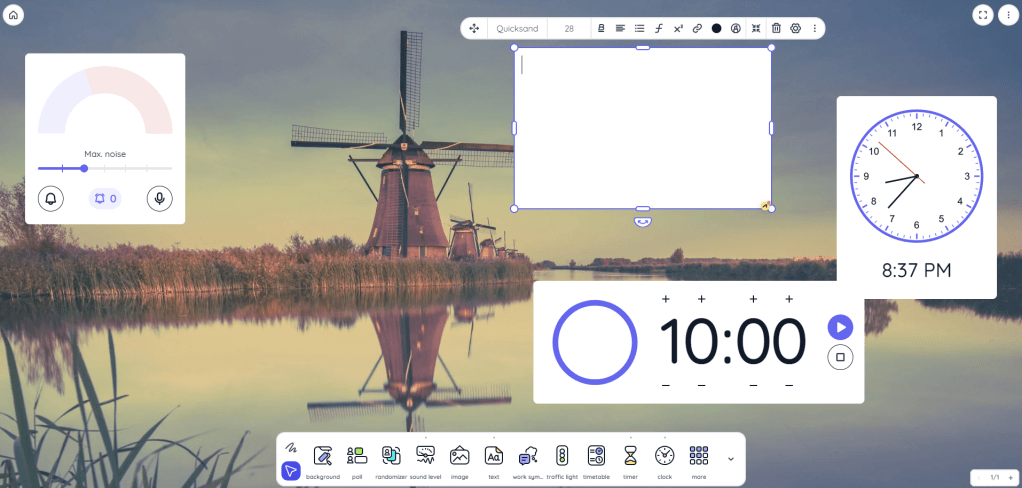
ClassroomScreen.com is a one-stop organizational space for the top edTech features for every day learning environments. Open with a daily poll question. Post the bellwork in a text box. Start a five-minute timer to complete it automatically, while the teacher completes the attendance procedures and takes some independent questions from students who may have been absent the day prior or needed assistance with a homework problem. Permit the student-of-the-day the opportunity to choose the background.
Through the Home screen, even without the paid service, users can access many items from the template library for specific teacher needs, such as:
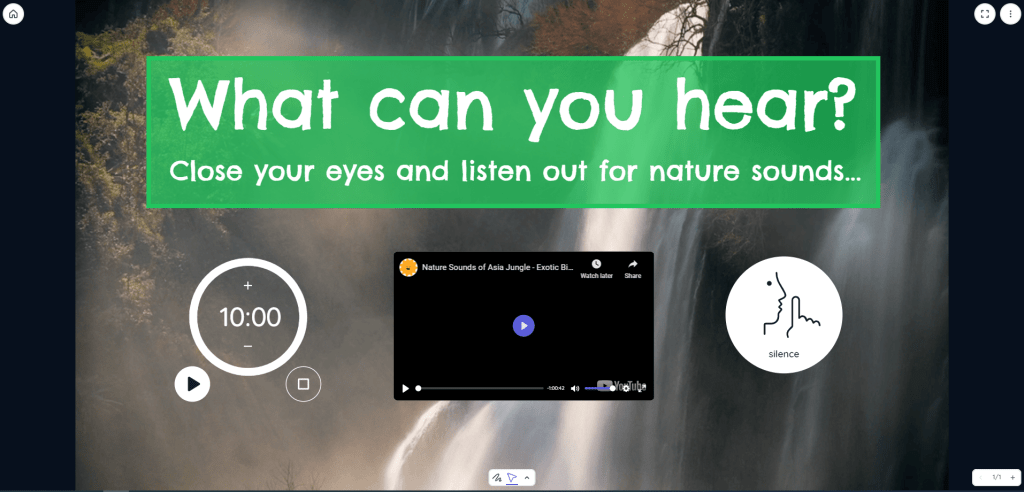
An exploration —
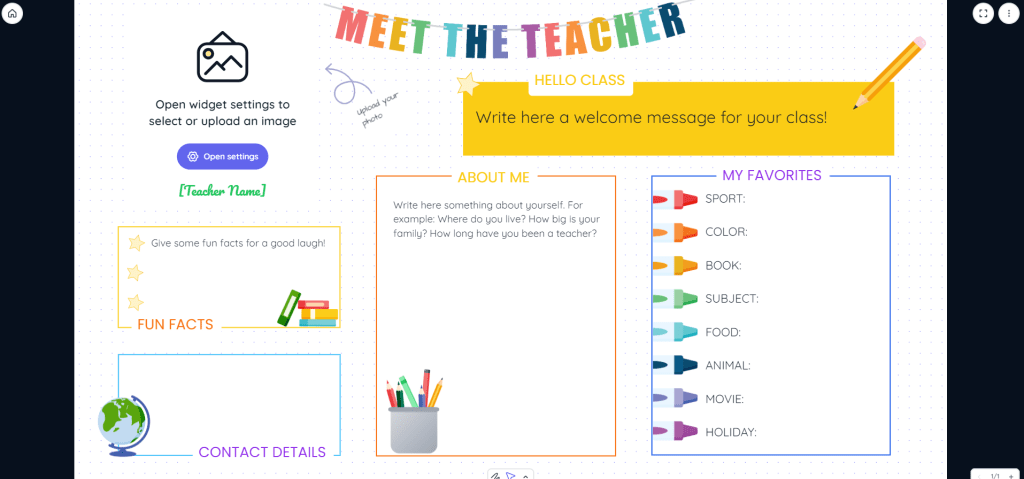
Meet the Teacher Night —
Problem-solving Activities —
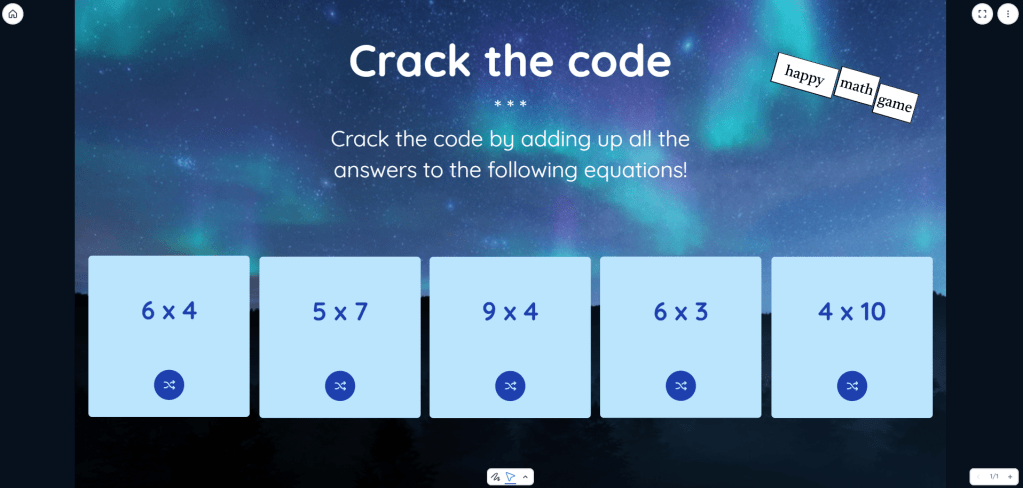
A Game —
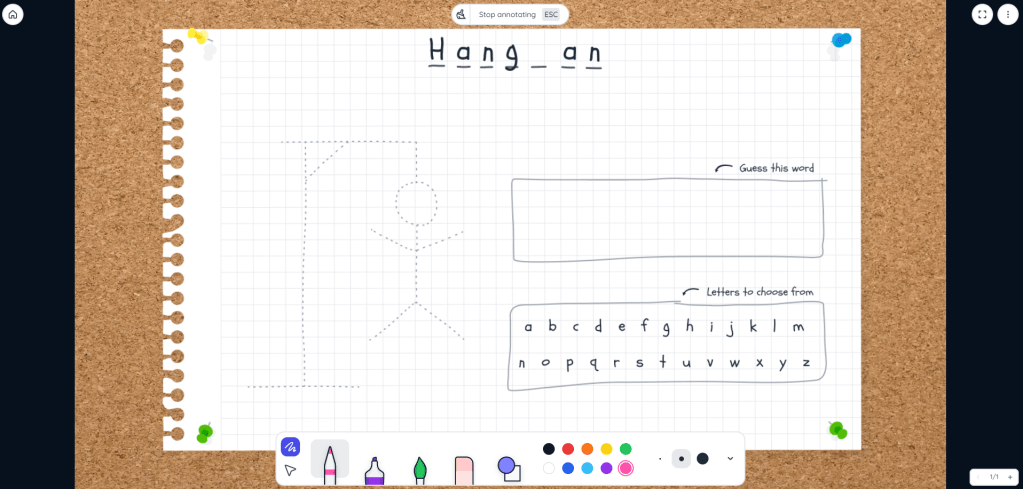
Could a teacher create a slideshow to do these things? Yes. However, it wouldn’t be as fast and easy.
Are some of them niche items which aren’t applicable to every class? Sure, but use the ones that apply best for your content area and age level.
ClassroomScreen offers flexible and easy ways to create interactive convenience in a classroom, whether it is to help with engagement, communicate information, or to moderate behavioral situations. Give it a try for free today.
Teacher Takeaways
Planning the layout of timing and behavioral expectations, plus the key student communication needs during a class can create a welcoming and equitable environment with ClassroomScreen.com.
Puentedura, R., (2016) The SAMR Model and Digital Learning. Access digitally at https://goo.gl/vBQHh5
 EmpowerED