
Executive Function Series – Part 7, inspired by The X Factor: Executive Function Tools in Google (2023)
Taking stock so far, our exploration has covered the basics of executive function, GMail applications, use of Google Calendar, and the use of Google Tasks for both teachers and students. This week and next week, we turn to Google Keep, the newest member of the Google Suite. All of the prior posts are available on the site archive (click here).
While the value of Google Tasks exists in the space that items listed there can be checked off the to-do list and they disappear from view, conversely, Google Keep is extra special because it doesn’t vanish. Whether it’s the weekly grocery list, the professional development sessions to attend this year, standards covered, or “cheat sheets” of key information for reference, everything is in Google Keep whenever it is needed.
Post-It Notes were a fabulous invention. [If you haven’t heard the story, they were actually a mistake. The adhesive formula was not strong enough, but, from a different perspective, it fit a perfect niche (click here)]. Unfortunately, they don’t travel well. Sure, it’s handy to put a Post-It Note on the desk as a reminder to talk to the student who missed yesterday’s test about a date/time to take the make-up version, but it doesn’t help unless you are still at the desk. What if there was a version that would invisibly follow anywhere you go? That would be handy. Enter Google Keep.
Like the paper-based Post-It Note, Google Keep fits a niche. In many ways, it functions like human brain storage, but it’s reliable. It can be accessed from the keep.google.com site in any browser or it has handy access, just like Google Calendar and Tasks, from the right sidebar which appears on GMail, Google Docs, Google Sheets, and Google Slides. The Google Keep icon is a gold background with a lightbulb drawing in the center. It can also be accessed through the “waffle” or nine-square Google icon in the upper right corner of Google Chrome. For even easier use anywhere, it can be added as a Chrome Extension so that it appears on the top bar to the right of the omnibox for searching. A help guide is available at this link (click here).
Keep can be helpful for anyone, but for teachers, it can be an amazing time-saver. For example, if a colleague or mentor shares a helpful resource by email, whether it is a link or a document or even a narrative example, Keep is the perfect option to “file it away for future use.” Sure, you could save the email among many thousands of emails, or under a folder of “resources” or by the name of the sender, but the lookup process is challenging and you would have to remember the details of it in order to find it again. Memory issues would be the exact reason you’re saving it, so that is problematic. We won’t even get started with printing it and adding it to a paper file! Of course, it could be PDFed and saved to Google Drive, but again, you would have to remember enough to search for it. I would click Google Keep directly from GMail. This would open a Google Keep note like the image below, but it would also have a tag connecting it to the email, which could be archived. All I have to do is title it American Revolution Simulation Idea and add a label I already have for “US History ideas for followup” and click close. Next year, when I’m planning, I can check my followup ideas and revisit it at just the right time. Of course, I could also set a date/time reminder to look at it a couple of weeks before starting the unit.
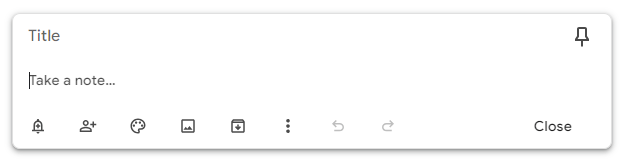
Notes can be paragraph text or checkbox lists. The “pin” icon adds them to the active Google Keep desktop for immediate access. By unpinning, they float based on recency or can be archived. Notes can also include images and drawings (more later). From left to right, the features at the bottom indicate:
- Set a Reminder – Add a date and time or even pick a place. Notifications can be done by the date, time or the location, if you are in the vicinity of the place you set (like home for household tasks or a store for shopping list items).
- Share – Notes can be shared with other individuals in the department or with students, who have access to the content of the note and get an alert about it, much like a shared Google Doc file. Any individual on the share list can interact with the data and it is updated for everyone in real time.
- Color-coding – Each note can be color-coded or get a feature icon for easy sorting and recognition. Each class or subject area could be a specific color…just like Post-It Notes.
- Images – Add images like logos and share them with others. Images can be uploaded or added through drag-and-drop.
- Archive – Store notes in the archive to avoid cluttering the Keep desktop, but they are easy to find by scrolling to the bottom of the page.
- More Options:
- Delete note
- Add a label – for sorting and organizing
- Add drawing – handwritten notes, a doodle, a signature – any freehand drawing
- Make a copy
- Show checkboxes
- Version history – especially helpful with shared notes, just in case
- Back/Forward buttons
Now that you have the functional basics, consider the plentitude of ways that Google Keep can be used for teacher needs. Of course, anything that you would add to a Post-It because you need to remember it but are flying among 20 different tasks which require your immediate attention in the next hour are fair game. For all of the reasons that adding a date and time was important for Google Calendar items or to Google Tasks, the same applies here. Today, this moment, your attention is on the students in front of you. Set a reminder to go down the hall during the next prep period to talk to a colleague about an upcoming field trip for which you just got new information. Better yet, share the content item in a Google Keep note so that the other person has a heads up before chatting.
When your favorite conference posts the dates for next year, add it to your Conference Wish List note so that you have the dates readily available in one click and maybe even the registration URL. Especially if you have to coordinate requests for conference attendance with administration, consolidating what may be multiple emails and a variety of possibilities into one note make it easier to share or prioritize when the time comes.
Goals and objectives are a great subject for a note, especially one with a checkbox. You can see them completed and actively address the remaining items while keeping your accomplishments in mind. This also holds true for pursuing certifications which have multiple factors to track. Each can be checked off as it is completed and the remaining items are boosted to the top. A reminder can help you keep tabs on that goal and not let it fall to the wayside. Once you have earned those certifications, consider keeping your microcredential image in Google Keep for easy access to add to the bottom of messages as it is appropriate.
Announcements verbiage shouldn’t be rewritten every year when your club meetings start. Save the school newsletter blurb from this year in Google Keep and reuse it again and again. After all, doesn’t this actually help you to capture the best from last year and then proof it next time. If you can make it better, adjust it. Redrafting every time risks the likelihood of forgetting an important component when you are in a rush.
Standard parent email verbiage is also a handy thing to add to Keep. Of course, such messages should be appropriate to the specific situation, but how many ways are there to phrase “Although I have mentioned the assignment multiple times privately in class, XX has not yet submitted her summative assessment from three weeks ago”?
Consider tracking district-provided professional development or other meetings for future reference, like certification renewals. While having the item on Google Calendar is helpful, sometimes it is more useful to have a list of all of the district PD in one place instead of searching the calendar or trying to remember that it was some time in the week prior to Thanksgiving. If PD like a virtual conference has links to the slideshows or video of the seminar, these links can easily be added to the list for access when you want to try to remember that very useful rubric that was mentioned or a powerful graphic organizer.
Mentoring logs with newer teachers or with students can be especially helpful for lookback references when providing a summary of contact at the end of the school year or totaling mentor hours. Adding topics as well as dates or linking meeting notes can provide a handy archive. While this can also be done in Google Drive after creating dedicated documents for this purpose, Keep offers a quick solution. If you are working with Google Docs or similar apps, creating a note from the icon sidebar automatically attaches that document to the note being created. It’s that simple.
You may remember that one of the drawbacks with Google Tasks was that it was not a searchable environment. However, Google Keep has a search bar at the top of the desktop space at keep.google.com. When adding a quick note from the sidebar, the desktop is not visible, but can be accessed through the “open in another window” icon which looks like a square with an arrow in the upper right corner.
Though the following is not a teacher task, we are all busy people with much to manage. I have been a devotee of Google Keep since a presenter mentioned using it for her grocery list because it was usually the same things so she could check them when purchased or not needed and uncheck them to bump them to the top of the list, without rewriting or remembering items. Setting a reminder time helped her not forget about the upcoming errand. Setting the location of her local grocery store meant that she got an alert when she was within range of the store, to avoid forgetting and arriving home without the needed items. She even shared the note with her spouse, who could just as easily do the shopping. For me, it was love at first note, feeling like an orchestra of instruments finely tuned to make the discord of my daily demands into a symphony.
Teacher Takeaways
Google Keep allows teachers to capture items, categorize them effectively, set reminders for time management, share content with strategic partners, and create a tailored repository which is not unlike the human brain, but far more accessible.
 EmpowerED
2 thoughts on “Improving Executive Function with Google Keep (for Teachers)”