
Executive Function Series – Part 5, inspired by The X Factor: Executive Function Tools in Google (2023)
Hasn’t everyone experienced this symbol and the mounting impatience that the computer operation will NEVER be ready?

Behind the scenes, computers are processing a vast number of commands in order to execute the instructions they have been given. When it continues endlessly, it is the image of a computer being overwhelmed with tasks to complete. Teachers understand.
Along with the research on the number of decisions teachers make in a day, they are cognizant of working on many layers with many people who need tasks completed:
- 20-30 students per class each have specific and unique needs;
- teaching tomorrow means planning today;
- a medical appointment the next day means detailed lesson plans in advance;
- assessment for the current unit is always on the horizon;
- development of the next unit must happen some time soon;
- department heads need information or meeting time;
- colleagues need a sounding board for ideas;
- administration needs help to support the “team” with an extra chore or committee assignment (or backup at lunch);
- club presidents need guidance before the next meeting; and
- family or personal dynamics impact the work day schedule
Research on List-making for Mental Health
Like the computer, the brain tries to manage all of those attention requests at the same time and gets stuck in the “spin cycle.” According to researchers from Florida State University, “commitment to a later behavior was linked to reduced rather [than] increased strain on mental resources” (Masicampo and Baumeister, 2011, p.12). In short, making a list item creates a commitment to handle the task, which reduces cognitive burden because it doesn’t have to stay in active memory, being revisited frequently. Conversely, the act of trying to stay on top of the many demands on a teacher’s time creates anxiety and mental load.
While a long to-do list can be daunting, knowing the landscape of expectations makes them easier to fulfill. Lists can also be edifying by capturing the reality of demands. Not listing them doesn’t mean they don’t exist; it just means they haunt the mind until they are resolved. When lists acknowledge these tasks, teachers can begin not only to address them, but to recognize what fulfills and what exceeds the reality of the job description. This can provide information for future dialogue about reasonable expectations.
Enter Google Tasks.
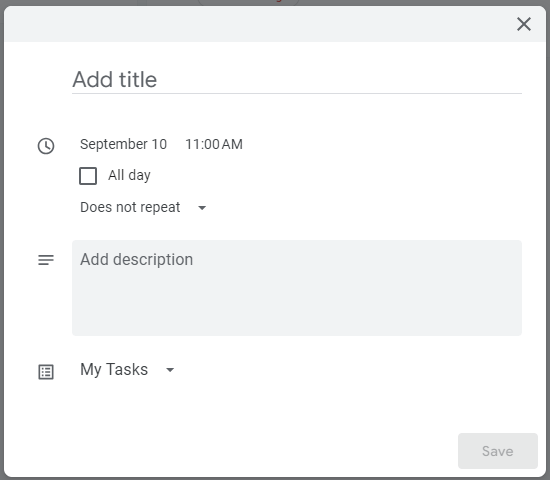
At tasks.google.comm (click here), users can create a general task list. By clicking the “+ Create” button, editors can add a title of the task, schedule it with a date and time, add a description, and assign it to a task list. Yes, multiple lists can be created. Consider separating by class, by home and work, or a week at a time (This Week, Next Week, Future Tasks). Tasks can even be set up to repeat on a regular schedule.
Navigating Google Tasks
Getting started with Google Tasks is easy. It is already integrated with most Google products. For example, from GMail, users may see the sidebar (right) of icons for Calendar, Tasks, Keep, and others. The same is true in Docs, Sheets, and Slides. If the sidebar is not visible, look to the bottom right corner of the screen for this symbol (greater than) “>” to open the sidebar. That means that, while reading an email, it is a simple step to add a task entry to the running list by clicking on this symbol:

Here is a link to the Google Tasks Help (click here).
The Beauty of Integration
Lists are not challenging to make. They can be done on any scrap of paper or be a part of a Franklin Planner notebook. They can be analog or digital. They can be basic or detailed. It’s all up to the author. The key advantage with Google Tasks is integration. For users of Google Calendar, which is frequently a feature in schools, Tasks entries displayed right on Google Calendar. However, with a busy calendar, tasks can be overlooked. If they are general (without a date and time), they display at the top of the current day as pending tasks. If they are specific to a date and time, they are displayed according to those details. Tasks will only display in Google Calendar if the display box for Tasks in the lower left sidebar is selected.
Cloud Access
Tasks can also be managed on the tasks.google.com site (click here) which is accessible from any internet-capable device. Like all Google products, by logging into the account, access follows the user anywhere. That means never forgetting the Post-It note with crucial information at school or losing it.
While cloud capability can make some people concerned about security, proper management of passwords and online behaviors minimize the risk. However, it’s always good to be wise about the level of personal information that is included in the platform. Daily to-dos hardly rise to the level of national security for most teachers. On the other hand, don’t forget about limits on sharing student data. If you have an after school meeting with Joyce Kim, avoid adding the full name (use Joyce K.) or disclosing a specific reason like detention, just in case.
Prioritizing
Once several tasks have been added to the list, managing it is the next step. By default, dated items will rise to the top, with current dates at the top and future dates below them. Undated tasks slide to the bottom. Referring back to the Masicampo and Baumister research, committing to a specific time, not just the list item itself, relieves the cognitive load even further. Primarily, if something has tomorrow’s date on it for the task to be completed, there is no need to worry about it today. In short, all dated tasks will prioritize themselves.
Undated tasks can be shifted and reprioritized with a standard drag-and-drop operation. This platform does not display the “::” handle that is frequently associated with drag-and-drop, but any entry can be moved up or down the lists by clicking and holding while moving to a better location. A line will appear on the main list in the area where the cursor is hovering to “drop” the entry, for ease of use.
List entries can also be leveled. Indents can be done by using a drag-and-drop motion to nest the new list item under a prior one or right-clicking on an item and selecting “Add a subtask.” Unfortunately, only one indent level is possible. From experience, this can be especially helpful in situations like make-up tests. The primary list item can be “Revolution Test Make-up” and the names or first name and last initial of the student can be the indented item so that no one gets forgotten until it’s unreasonably late to address the problem…or teachers could wait until each student politely comes to the desk and asks to take the test they missed when they were sick. Yes, that always happens.
Dismissing a Task
Ahhh, the power of checking off a task — the boost of adrenaline — the sense of accomplishment! This can be done simply by clicking on the open circle before each list item. Afterward, the checked item falls off the list under “Completed” at the bottom. By clicking the > to the left of “Completed,” users can see the last ten completed items, in the order they were finished. By clicking on “Load more,” one can view the entire list of accomplishments.
The other option is to right-click on an item and permanently delete it. This is also applicable for tasks which have become obsolete.
Prep Time Perks
The biggest advantage for using Google Tasks as a teacher is likely to be an improved level of focus for prep time. It’s too easy to slump in the chair exhausted, use the restroom, take a walk, swing by the teacher’s lounge with a table of treats, or hang out by the mailbox and talk to a colleague. Planned prep periods are efficient ones. That doesn’t mean that it’s always possible to get through the class set of tests in the time allowed, but they are more likely to get done than if they are waiting in a pile or basket for someday.
Bonus!
A side bonus of a list is that a quick item, which might be forgotten if it’s just in memory, can be handled in small windows of opportunity which arise in the school day — passing time, announcements, moments when students are doing silent reading, or during a video. Whittling away at the list in some of those unexpected times, plus the advantage of powering through specific items during a prep, slays the task list dragon by the end of the day or week so that a teacher can leave without the additional cognitive burden of wondering what else needs to be done before going home. Peace and the accomplishment of many tasks well done are a much better feeling.
Teacher Takeaways
Itemizing tasks provides clarity, improved efficiency, advantages for mental health, and a momentary boost when they have been successfully completed.
Masicampo, E. J., & Baumeister, R. F. (2011, June 20). Consider It Done! Plan Making Can Eliminate the Cognitive Effects of Unfulfilled Goals. Journal of Personality and Social Psychology. DOI: 10.1037/a0024192
 EmpowerED
2 thoughts on “Improving Executive Function with Google Tasks (for Teachers)”