
If you’re ready to take a joyride with Autocrat, start with Google Sheets, then get the autoCrat add-on (How To link). Notice that autoCrat has a four-star rating, which helps us separate the good stuff from the rest.
Logistics to set up your first customized roll-out take some thinking, planning, and maybe troubleshooting, but the payback is enormous. Let’s start with the idea of a custom document to push out to a group — maybe it’s students, maybe it’s a work group. This sends one template to many people and gives you ongoing access to all of them as the creator.
You may ask — why would I feel the need to create the Google Doc for my students? Shouldn’t they have ownership and take responsibility for their own learning? Isn’t this an opportunity for them to practice their technology skills? While I agree with the sentiments completely, from a practical standpoint class time is precious. I can’t afford ten minutes while they navigate the wilds of their devices, take a side trip to check emails or grades, spend extra time adding text in rainbow colors to look cool, etc. Then there’s the other side of the coin. If I had a nickel for every time that a student submitted an assignment, but didn’t give me access to view it…well, it would be a great salary bonus. Students have full access to the document and the content they put there — and, after all, isn’t that really where I want the learning time spent, not in getting practice opening a Google Doc and titling it?
Just for practice, type first name, last name, and email into a blank Google Sheet on the top line and then add your information below the header.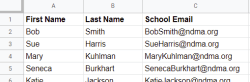
Next, launch autoCrat. I have a walkthrough of a class exercise, so you can follow along and create your own as we go. As long as you’re just sending the document to yourself, it’s OK if it’s not perfect the first time. Mine weren’t.
Step 1: Type a job name (which no one but you will see).
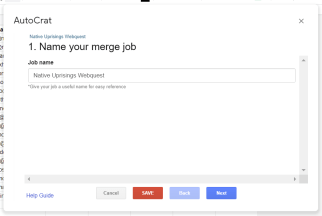
Step 2: Find (or create) your template document to send.
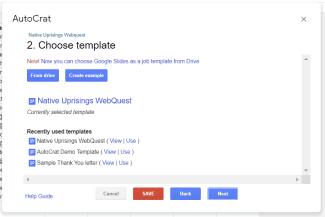
Step 2: Find (or create) your template document to send.
Step 3: Select the data sheet to use and specify where the actual data begins. 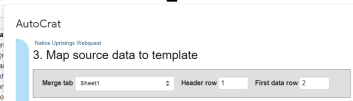
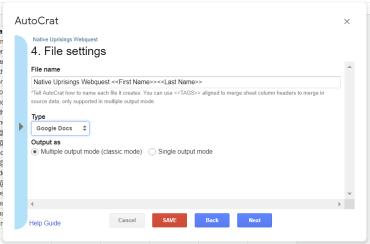
Step 4: Here you want to make the file name that recipients will see. Tags are great because they allow personalization with names, dates, project headings, etc. You can send files as PDFs for informational purposes or as an interactive Google Doc.
 Step 5: Pick a location for the new files you’re creating. Students should be reminded to save them in their own Google Drive as well. You have the option on the next two screens to send each file to a custom folder and make certain conditions, like only sending to someone on the list who is a group leader, not to everyone. For now, we’ll stick to basics.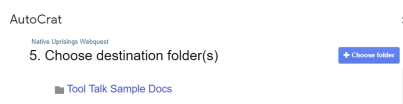
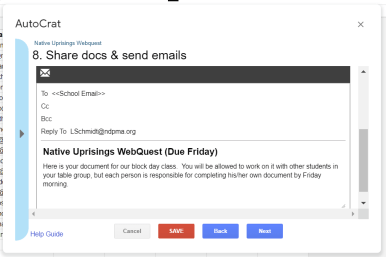
Step 6: Next, share your Doc and customize that email. 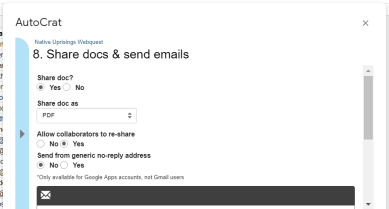
Step 7: Click “Run on form trigger” to manually send the document when you start the job. You can also push documents at specific times, like every hour so that new responses get their forms automatically.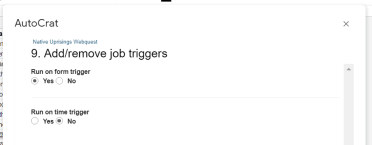
That’s it. When you click that play button, autoCrat will go to work for you.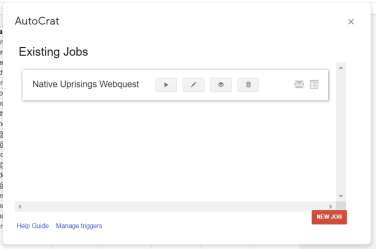
When the work is completed, you will have four additional columns filled, including the accessible, customized Google Docs for each student, at your fingertips. Hey! You could even add a grade column and one with comments, then trigger a new email with the details for your students in one click of the play button (after setup, of course). Now, let me think — All I have to do is label the sheet “2019” and add a new one for next year and the mailmerge script is already written. This is a nice once-and-done option.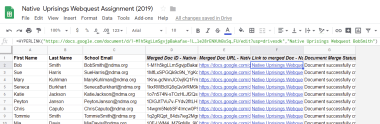
Before we go too far, it’s important to remember that there are a few hangups with using autoCrat:
- Set-up for a new user can take half an hour, easily, and may involve some unsuccessful (and frustrating) trial runs;
- Even for an experienced user, this will take 10-15 minutes, if you already have documents prepared;
- Curating student documents DOES allow them to relinquish responsibility, so we want to be judicious about appropriate use for this tool;
- Success depends upon students getting the email sharing the document. I once had a student with over 2000 unread emails. For some students, email delivery of course content may be a difficult adjustment.
However, the news isn’t all cautionary.
Let’s take a minute to share a 10,000-foot perspective. Meet TIM, we have a great relationship because TIM supports and challenges me. TIM is the Technology Integration Matrix  from Florida Center of Instructional Technology at myTechMatrix.org . The matrix takes us through Entry Level (you are here), to Adoption Level (where you will be in a few minutes), into Adaptation Level (which will happen when you say, “I wonder if I could use autoCrat to share my [fill in the blank] and you give it a try), then Infusion Level comes when you start a class culture with these shared templates to dispense with the mundane teaching tasks in minutes and have the rest of class to really dive into exploration together. Transformation is possible, like when your students realize that they can use autoCrat with their other classes and projects). On to the matrix side of things — Does autoCrat promote Active Learning? When you’re sharing a template and expecting it to be completed by the due date, it sure does. What about Collaborative Learning? Not only are you collaborating with students through autoCrat shares, you could send a document to group leaders to promote sharing among classmates. We are also clearly looking at Constructive Learning, as students complete information using other resources at their disposal and make their progress known to you. Don’t forget to dialogue with students how you use autoCrat as a teaching professional, with colleagues and administrators, or even for your own personal needs. This can spark explorations for them. A highlight of autoCrat is Goal-Directed Learning because the assignment goal is clear to students and you are demonstrating to them that you don’t need to waste their valuable class time creating documents from scratch when they could hit the ground running.
By efficiently delivering these start-up documents to students, we empower them to become Knowledge Constructors (ISTEs third standard for Students), particularly by helping them “plan and employ effective research strategies” (3a), “curate information from digital resources using a variety of tools and methods” (3c), and “build knowledge by actively exploring” (3d). We are also fueling Creative Communicators (standard 6) who can “communicate complex ideas clearly and effectively” (6c) and “publish or present content” (6d).
Teacher Takeaways
Tech tools, like autoCrat can eliminate mundane tasks, which waste teachers’ time and frustrate students.
 EmpowerED
One thought on “Reviewing autoCrat”